Which permissions should a Rummy App request?
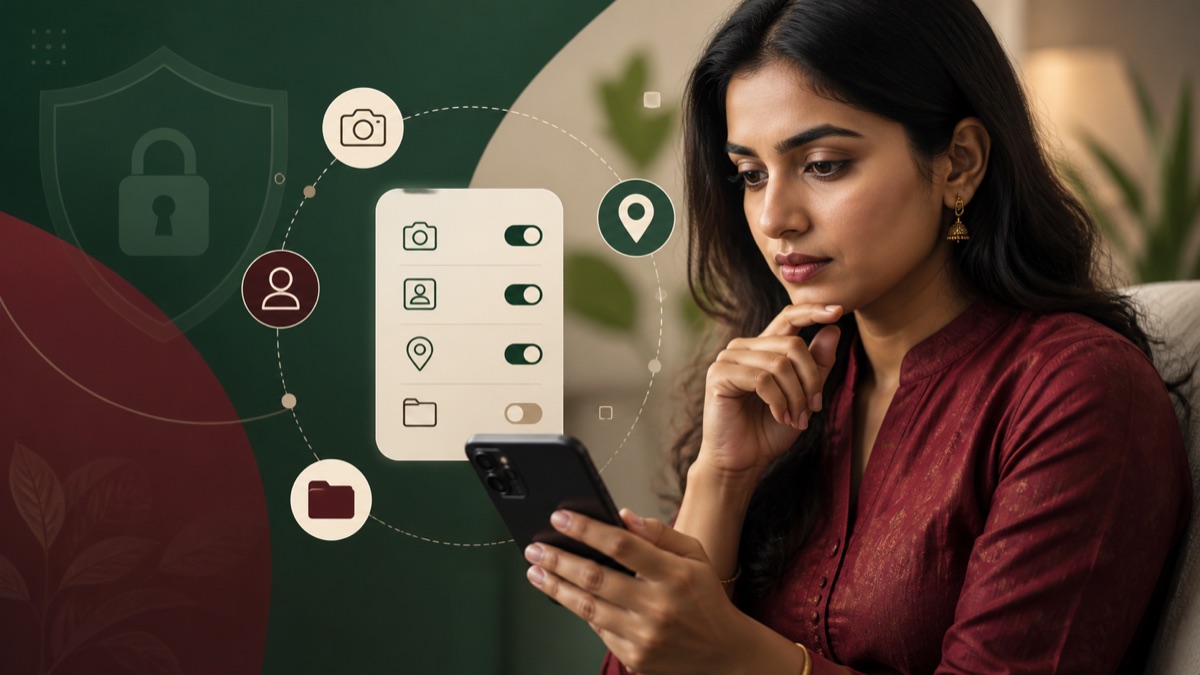
A card game may reasonably need network access and notifications; a profile image or support attachment may justify camera or media access when the feature is used. Contacts, SMS, precise location, accessibility, screen capture and device-administration access require much stronger explanations because they expose sensitive data or control. Judge a permission by timing and purpose: it should appear when the related feature is used, not as an unexplained condition of opening the App. Android lets users review and revoke permissions after installation. If a sideloaded App asks to enable restricted settings or share the screen, pause and verify the developer through an official source before continuing.
- Ask what the feature needsA permission should have a clear relationship to a user-visible App function.
- Deny unrelated accessContacts, messages, accessibility or device-admin access require exceptional justification.
- Review after updatesPermission requests can change when a new version is installed.
Why permissions matter
Android permissions control access to information and device functions such as notifications, camera, microphone, photos and location. The presence of a permission does not automatically prove harmful behaviour, but the developer should be able to explain why it is needed.
Permissions that need a clear reason
Camera access may be requested for identity verification, while photo access may be used to upload a document. Those explanations should appear at the moment the feature is used. Contacts, SMS, phone, accessibility or broad storage access deserve additional scrutiny when they are not essential to the feature you selected.
Review permissions before and after installation
Use the app information screen in Android settings to inspect and revoke access. If an app stops working after you deny a permission, decide whether the requested function is necessary rather than granting every request automatically.
Updates can change permissions and data practices. Compare the current privacy disclosure and app settings after a major release, particularly before providing identity or financial information.
Support scams and remote access
A legitimate support interaction should not require your UPI PIN, OTP or banking password. Do not install screen-sharing tools or enable accessibility control at the request of an unverified messaging account.
Permission purpose test: feature, timing and scope
Judge a permission with three questions. Which visible feature needs it? Why is it requested at this moment? Is the scope narrower than the task? Camera access while uploading KYC may have a clear purpose; continuous contact or accessibility access for a card game needs much stronger justification.
Android permissions can change after an update. Recheck the App in Settings, remove access that is not needed, and uninstall if the product cannot explain high-risk access. Never grant screen sharing, accessibility control or SMS visibility to a person claiming to be support.
Frequently asked questions
Are all Android permissions dangerous?
No. The relevant question is whether each permission has a clear connection to a feature you chose to use and whether the developer explains it at the right time.
Where can I review an app's permissions?
Open the app information page in Android settings and review the Permissions section. Labels vary slightly by Android version and device maker.
Can permissions change after an update?
Yes. Re-check permissions and the current privacy disclosure after a major app update.
Should customer care ask for accessibility or screen-sharing access?
Treat that request as high risk unless you independently verified the support channel and understand exactly why access is required. Never reveal an OTP or UPI PIN.
Sources and further reading
External sources were checked when this article was updated. Product availability and help documentation may change.
Start from the feature, not the prompt
Android permission prompts are easier to assess when you ask which feature triggered them. Notifications may support match reminders or account alerts. Camera access may be used for an optional profile picture or identity check. Microphone access may support voice chat. A permission can be technically explainable without being necessary for every user, so choose “not now” or limited access when the feature is optional.
Timing matters. A camera request that appears only when you tap “take profile photo” is more understandable than the same request at first launch. A contacts request from a card game needs a clear invitation feature and should not be required to learn basic rules. Precise location, SMS, call logs, accessibility services and display-over-other-Apps access deserve especially careful review because they can reveal sensitive information or influence other applications.
Location, contacts and device identifiers
Some products use location to enforce regional availability. If location is required, check whether approximate location is sufficient and whether access is needed only while using the App. Contacts may be requested for invitations, but sharing an address book affects people who never agreed to use the service. Prefer a manually entered invite link when available.
Device identifiers, advertising IDs and usage analytics may not appear as traditional runtime prompts. Review the store’s data-safety disclosure and the privacy policy. Look for the named operator, purposes of collection, retention periods, sharing practices and a deletion route. A long policy is not automatically a clear policy; it should connect the data category to a specific purpose.
High-risk access to review carefully
Accessibility services can read screen content and perform actions across Apps. Screen-sharing or remote-control tools can expose messages, OTPs and payment interfaces. A normal Rummy game should not require you to give an unknown support agent this level of access. “Display over other Apps” can also be abused to place content on top of banking or login screens. Treat unexplained requests as a reason to stop.
SMS permission may be used for automatic OTP detection, but manual code entry is often possible. Never share the OTP with a caller or paste it into a page reached from an unsolicited message. Banking PINs and UPI PINs should remain known only to you.
How to audit permissions later
Open Android Settings, choose Apps, select the product and review Permissions. Remove access that no longer matches your use. Check special access separately, including install unknown Apps, accessibility, notification access, device administration and display over other Apps. Android’s privacy dashboard can show recent camera, microphone and location use on supported versions.
Repeat the audit after a major update because new features can add new data requests. If the App stops working after an optional permission is denied, consider whether the feature is important enough to justify the access. Uninstall when the product’s behaviour and published explanation cannot be reconciled.
For shared family devices, review which Google account owns the installation and whether children can approve purchases or new permissions. Use device-level parental controls where appropriate. Permission decisions should be revisited when the phone changes owner, the App account is closed or the product is no longer used.
This article is for general information. It is not legal advice, a product endorsement or a promise of winnings. App features and availability can change by version and region.