Why is a Rummy APK not installing on Android?
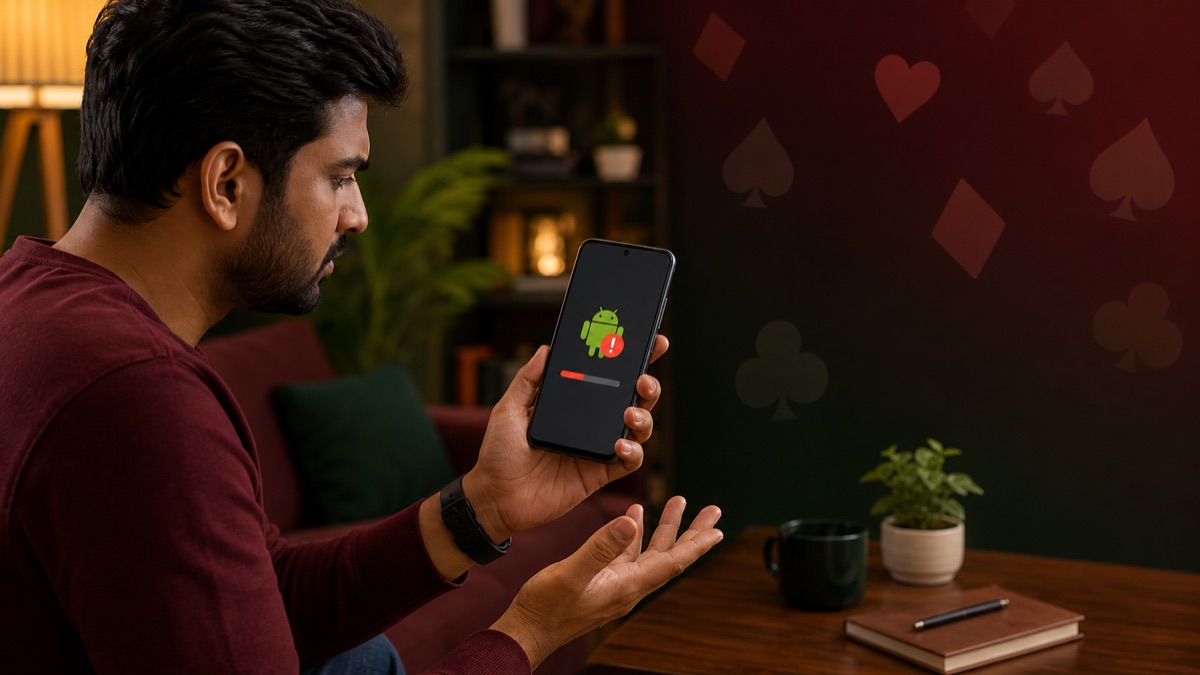
Common causes include an incomplete file, insufficient storage, an Android version the App no longer supports, a package conflict with an installed copy, or a signing identity that does not match the existing App. A security warning can also block installation when the source or requested settings appear risky. Do not solve the problem by disabling Play Protect or accepting unexplained accessibility access. Delete a clearly incomplete file, confirm the package and developer through a known source, check storage and OS requirements, and compare the new version with the installed one. If Android reports a signature conflict, stop: it can indicate a different publisher or modified package rather than a routine update.
- Source restrictionAndroid may block an installer that lacks permission to install unknown Apps.
- CompatibilityThe file may require a different Android version, processor or device configuration.
- Package conflictA damaged file, signature mismatch or existing package can prevent installation.
1. Confirm that the app supports your device
An app can fail before installation when its minimum Android version, processor architecture or device requirements do not match your phone. A current Google Play listing normally shows compatibility for the device you are using. For an external APK, the developer should publish equivalent requirements.
Do not install a different file merely because its name includes words such as 'lite', 'latest' or 'universal'. Those labels do not prove compatibility or authenticity.
2. Check storage and the downloaded file
Make sure there is more free storage than the APK file size because Android needs temporary space during installation. A partial or interrupted download can also trigger a parsing or package error.
Delete only the failed download, confirm the official source again and download a fresh copy. If the filename, file size or destination changes unexpectedly, stop and investigate before opening it.
3. Look for an existing package conflict
Android may reject an update when the installed version was signed by a different publisher. This can happen when a device contains an older package from another source. Do not immediately uninstall an app that contains account or game data; first confirm the correct official update path and whether the app supports data recovery.
4. Treat security warnings seriously
Keep Play Protect enabled. Google says it checks apps during installation and periodically scans the device for potentially harmful behaviour. A warning is a reason to pause, not a setting to switch off in exchange for a reward or bonus.
- Restart the phone after clearing a confirmed temporary download.
- Update Android and the browser or file manager used for downloading.
- Review the app source, developer and package identity again.
- Contact the named developer through a verified domain—not a random messaging account.
Match the Android error to the next safe action
Repeatedly enabling unknown-source permissions does not fix a corrupt or mismatched APK. Keep the permission limited to the installer you intentionally use and turn it off afterward.
Frequently asked questions
Why does Android say there was a problem parsing the package?
Common causes include an incomplete file, an APK built for a different Android version or a damaged download. Confirm compatibility and download again only from a checked source.
Can low storage stop an APK from installing?
Yes. Android needs working space in addition to the APK file size. Free storage, restart the device and retry only after confirming the package source.
Why does an update conflict with the installed app?
The new file may use a different package signature from the installed version. Verify the official update path before uninstalling an app that may contain account or local game data.
Is it safe to ignore an Android security warning?
No. Treat the warning as a reason to stop and re-check the developer, package ID and download destination.
Sources and further reading
External sources were checked when this article was updated. Product availability and help documentation may change.
Match the error to the likely cause
An installation failure is a symptom, not a diagnosis. “App not installed” can indicate a damaged file, insufficient storage, an incompatible Android version, a certificate conflict or an existing package signed by a different developer. A parse error can indicate that the package is incomplete or cannot be read by the operating system. A security warning may come from Play Protect or from a permission that allows installation from an external source.
Write down the exact message before changing settings. Repeatedly downloading the same file or disabling protection does not solve an identity conflict. If a previous version is installed, confirm whether the update comes from the same publisher. Android normally refuses an update signed with a different certificate, which protects one developer’s App from being silently replaced by another package.
Check compatibility and file integrity
Compare the required Android version and device architecture with your phone. An App built only for a newer Android release may not install on an older device. Very old packages may also fail under newer security requirements. Check available storage, remembering that installation needs more free space than the final displayed App size because Android must unpack and optimise the package.
Download again only from the source you independently verified. A file that is much smaller than expected may be incomplete. When the publisher provides a checksum, compare it with the downloaded file. A checksum from an unrelated mirror is not independent evidence. Keep the original filename and note the download time so that different copies are not confused.
Use installation permissions narrowly
Modern Android versions allow installation permission for a specific source App, such as a browser or file manager. Grant it only to the source you are actively using, complete the verified installation and remove the permission afterwards. Do not enable broad legacy settings permanently. Never grant accessibility control, device administration or screen sharing simply because a webpage says they are required to install a card game.
If Play Protect warns about the file, stop and investigate the reason. A guide should not instruct users to bypass a warning automatically. Search for the exact package identity and developer, not only the marketing name. When evidence remains inconsistent, the safe outcome is not to install.
After the App installs
Open Android’s App information page and review permissions, storage use, battery activity and data consumption. Remove optional access that the core feature does not need. Watch for a second installer, unexpected browser redirects or prompts to download another package. These behaviours may indicate that the file was only a loader rather than the expected App.
If the problem persists after source, compatibility, storage and certificate checks, use the developer’s current verified support route and provide the device model, Android version and exact error. Do not share passwords, OTPs or payment credentials during troubleshooting.
This article is for general information. It is not legal advice, a product endorsement or a promise of winnings. App features and availability can change by version and region.